Aluminum Procurement & Inquiry Center
Turn application requirements into a clear written inquiry. Review the scope, prepare your attachments and send the message from your own email service.
One requirement, four steps
- Define the delivered item
Separate raw material, cut lengths, machined components, hardware packages and assembled products.
- Review the evidence
Identify the controlled drawing, material proposal, finishing scope and acceptance documents.
- Send your reviewed inquiry
Download or copy the brief. Open your own email app or webmail, attach agreed files and send it yourself.
- Track an actual reply
Record recipient acknowledgement and quotation scope. A download or email click is not proof of delivery.
Prepare a comparable request
Start with a procurement route or enter your own requirement. Application checklist entries can be carried here with your permission.
Send, confirm and follow up
- Review the brief
- Check drawing revision, quantities, quotation unit, delivered operations and acceptance responsibilities. Explicitly mark unknown items for supplier clarification.
- Prepare attachments
- Match file names to the attachment register. Confirm that PDFs and CAD files describe the same revision. Agree confidential-file sharing before sending.
- Send from your email service
- Open the email draft or paste the downloaded text into webmail. Confirm Tony’s address, attach the files and press Send in your email service. This page has no attachment upload or automatic submission.
- Record receipt separately
- Your sent-mail folder records your own sending action. Only recipient acknowledgement or a verifiable reply supports a receipt record. No response time or quote availability is promised.
- Compare the reply
- Request the contracting entity, production-site scope, exclusions, tooling ownership, commercial basis, proposed schedule and acceptance evidence in writing.
Start from your application

Industrial framing profiles
Prepare lengths, connections, loading references and hardware scope.
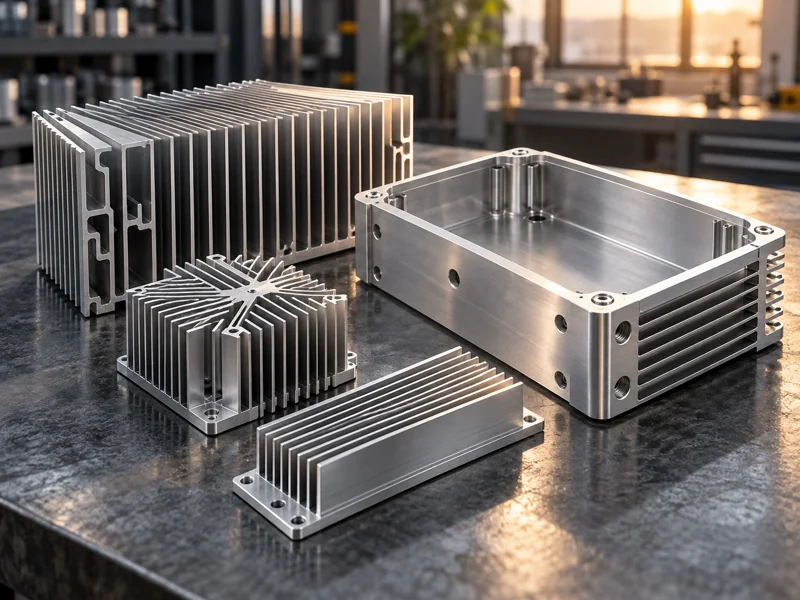
Heat sink extrusions
Prepare thermal conditions, mounting and finished contact-face requirements.

Solar mounting profiles
Prepare project drawings, rail interfaces and the component or system boundary.
Inquiry questions
Is this an automatic quote request?
No. The tool prepares a local brief and a message for your email service. Review and send the message yourself. There is no quote guarantee or automatic supplier distribution.
Can I continue from an application checklist?
Yes. Choose Continue to procurement center on an application page. That action temporarily carries your entries within the same browser tab; they are not put into a URL or sent to the website. The temporary transfer is removed when opened here.
What if my mail app does not open?
Download the text brief or copy the preview. Open your usual webmail and address your message to Tony. Attach the agreed drawings manually.
How do we know whether an inquiry was received?
Keep a separate receipt record supported by an acknowledgement or reply. Download counts and email clicks cannot establish that a message was sent or received.
Architectural and LED procurement routes

Architectural profile procurement
Control the drawing, delivered scope, accessory interfaces and acceptance evidence.
Windows and curtain walls
Control the drawing, delivered scope, accessory interfaces and acceptance evidence.
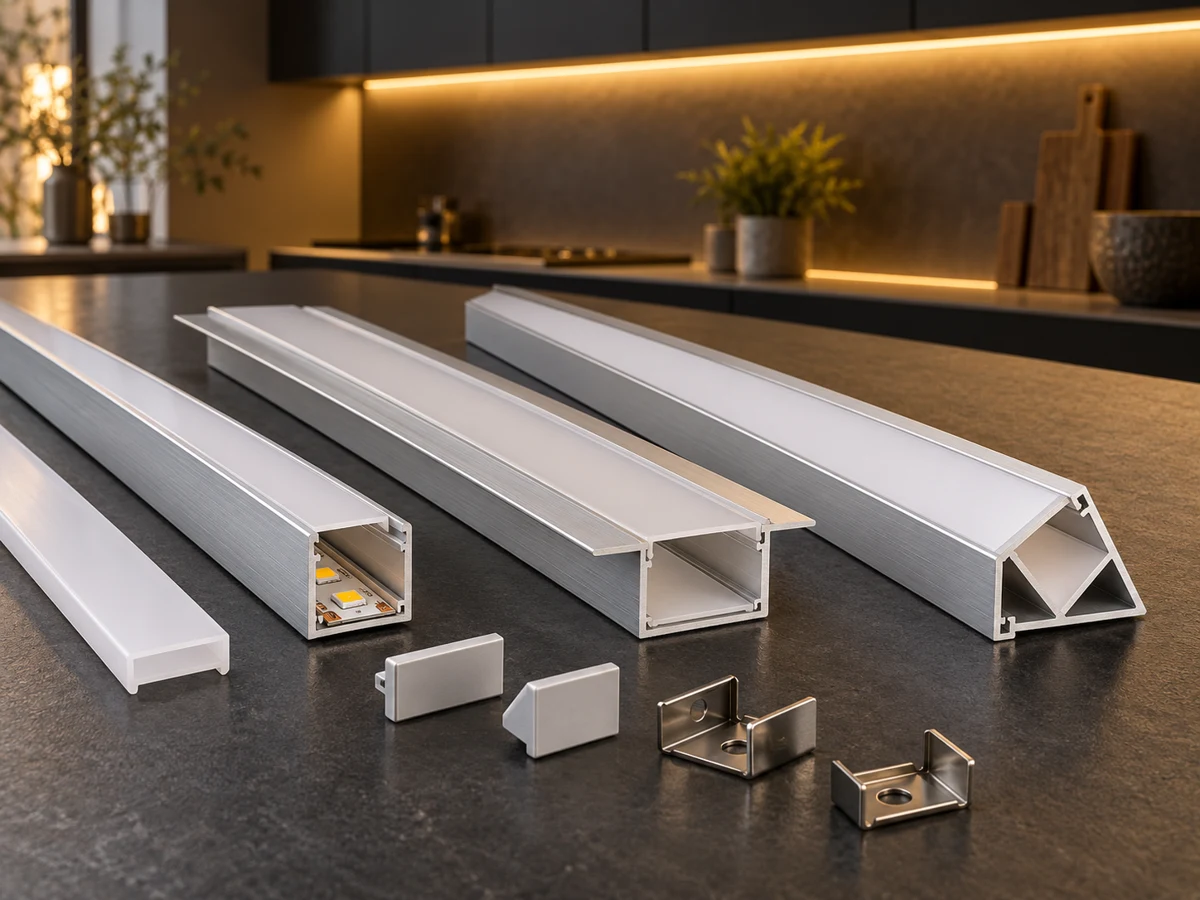
LED channels and accessories
Control the drawing, delivered scope, accessory interfaces and acceptance evidence.